Sign in
Open the login page. There is no password. You can continue with Google, or type your email and choose Email me a link. The link in that email works for 15 minutes. New and returning sellers use the same steps.
If the email does not arrive, check spam, then choose Try again. Some office email systems block login links, so a personal email works better.
Pick your name
The name goes after the slash in your link, for example staging.tapyoka.com/aditi.travels. Type it under Your link and the app tells you at once if it is free.
- Use 3 to 30 characters: letters, numbers, dots and underscores. A dot or underscore cannot start or end the name.
- Names of 3 characters or fewer, names of banks and payment apps, and names that look like a scam are not available.
- Names of well known brands and people are kept for their owners, who can verify to claim them.
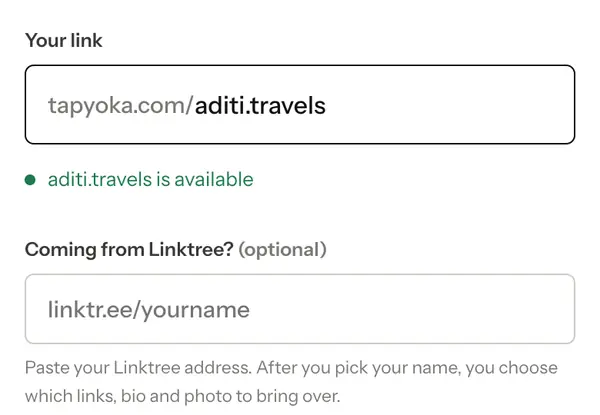
Tick I confirm I am 18 or older. and I agree to the Terms and Privacy Policy., then choose Claim this name. Pick a name you will keep. You can change it once every 30 days, and the old link keeps working for 90 days after a change.
Coming from Linktree? Paste your Linktree address in Coming from Linktree? and you can choose which links, bio and photo to bring over.
Choose a look
Next the app asks What do you do? and suggests a look to match. Choose Use this look or Pick another. You can skip this and change the look later under Look on your page. There are 21 free looks and 6 more on Pro.
Add your photo, name and bio
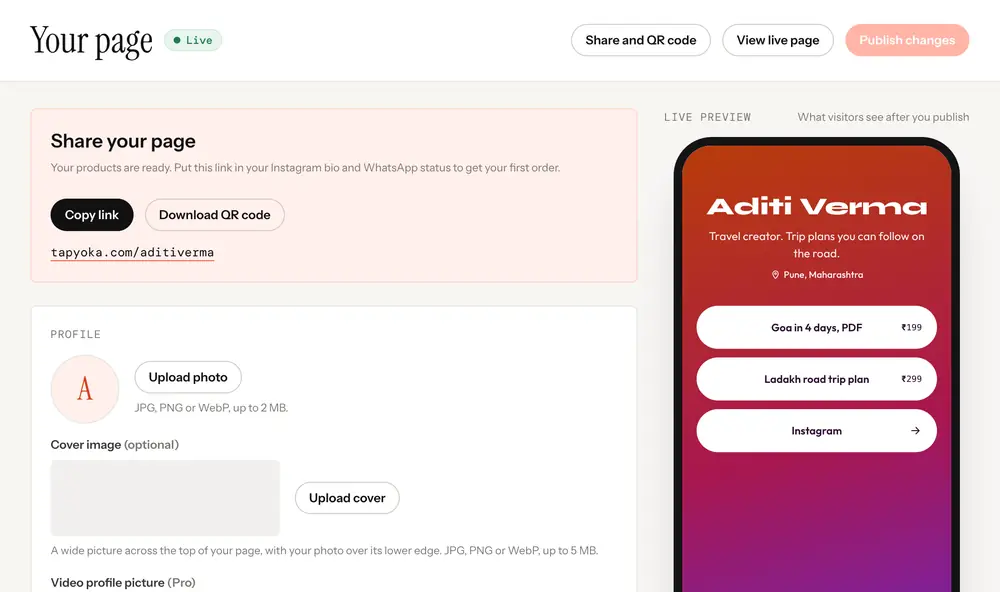
- Open Page in the menu. Under Profile, choose Upload photo. JPG, PNG or WebP, up to 2 MB.
- Fill in Name, Bio (up to 160 characters) and, if you like, Location (optional).
- Choose Save profile.
- Add your Instagram, YouTube and other accounts under Social links, up to nine, and choose Save social links.
Add blocks
Blocks are the buttons and sections on your page. Under Blocks, choose one of the add buttons, fill in the form and save. The ones most sellers start with:
- Add link for your YouTube, shop or any other link.
- WhatsApp button so people can message you in one tap.
- Add product to sell a PDF, a file or a link. See Add a product.
- Booking to sell calls and sessions with time slots.
- Pay or tip for tips or a fixed amount.
- Lead form to collect emails or phone numbers.
Drag a block to change its place on the page. Undo and History take you back if you change your mind.
Add your seller details before you sell
Buyers must see who they are buying from. Open Settings, find Seller details and fill in How buyers can reach you, your City and your Refund and cancellation terms. These show on your product pages, the checkout and receipts.
Then open Getting paid and add your UPI ID and the name buyers see, so buyers can pay you. You need at least a UPI ID or your own payment link before you can sell paid items.
Publish and share
Changes are saved as a draft. Nothing reaches your live page until you press Publish (it says Publish changes after the first time). The chip next to Your page tells you where you are: Not published yet, Unpublished changes or Live.
When the page is live, use Share and QR code to copy your link or download a QR code. Put the link in your Instagram bio and on your WhatsApp profile. How to sell a PDF from your Instagram bio shows where it goes in Instagram.
Linktree is a trademark of its owner. Tapyoka is not affiliated with it.