Steps
- Open Settings and find Use your Instagram handle.
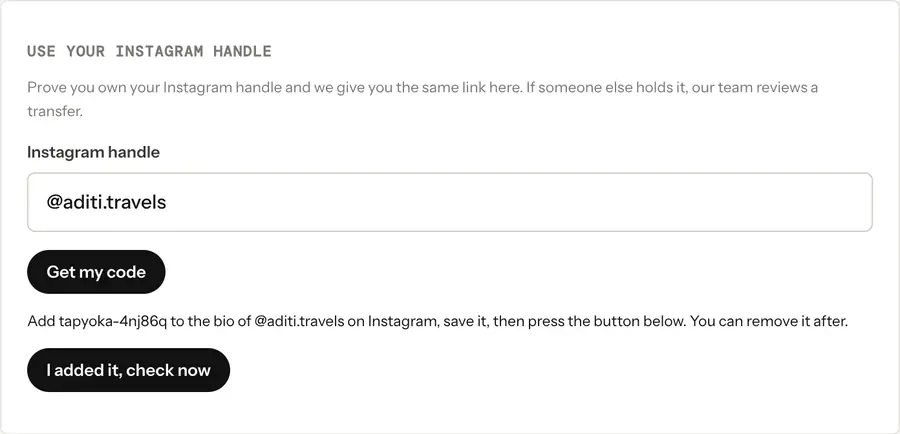
- Type your handle under Instagram handle, for example @aditi.travels, and choose Get my code.
- The app shows a code that starts with tapyoka-. Copy it.
- In Instagram, open your profile, tap Edit profile, paste the code anywhere in your bio and save.
- Back in Tapyoka, choose I added it, check now.
What happens next
- The name is free: your page moves to the new name at once. The app shows "Done. Your link is now" with the new name.
- The code was not found: check that you saved the bio, then try again.
- Someone else holds the name, or Instagram could not be read: our team reviews the request and emails you. Keep the code in your bio until then. If the transfer is approved, the other page gets a new name and you get yours.
Once the check is done, you can remove the code from your bio. Then update the link in your Instagram bio to your new Tapyoka link.
Good to know
- You need a page before you can do this. Pick any name first, then move to your handle.
- Handles that are not allowed as names here, such as bank names, cannot be moved over.
- Names kept for a brand can only be claimed by that brand official Instagram account.
- This gives you the name. It does not add a verified badge to your page.