Before you start
- Your page is claimed and your Seller details are filled in. See Set up your page.
- You have the file ready, or a link buyers can open.
For a paid product you also need a UPI ID or your own payment link in Getting paid. The first time you activate a paid product, the app asks you to confirm the licence declaration and to add your PAN or Aadhaar. Indian tax rules need these before you can sell.
Create the product
- Open Products and choose New product.
- Fill in Title. The Link is made from the title. You can change it; the old link keeps working for 90 days.
- Enter the Price in rupees. Leave 0 for a free product. The highest price is ₹1,00,000.
- Under What is it?, choose Digital for files and links.
- Write a Description: what is inside, how many pages, who it is for. Add a Cover image (optional), JPG, PNG or WebP up to 5 MB.
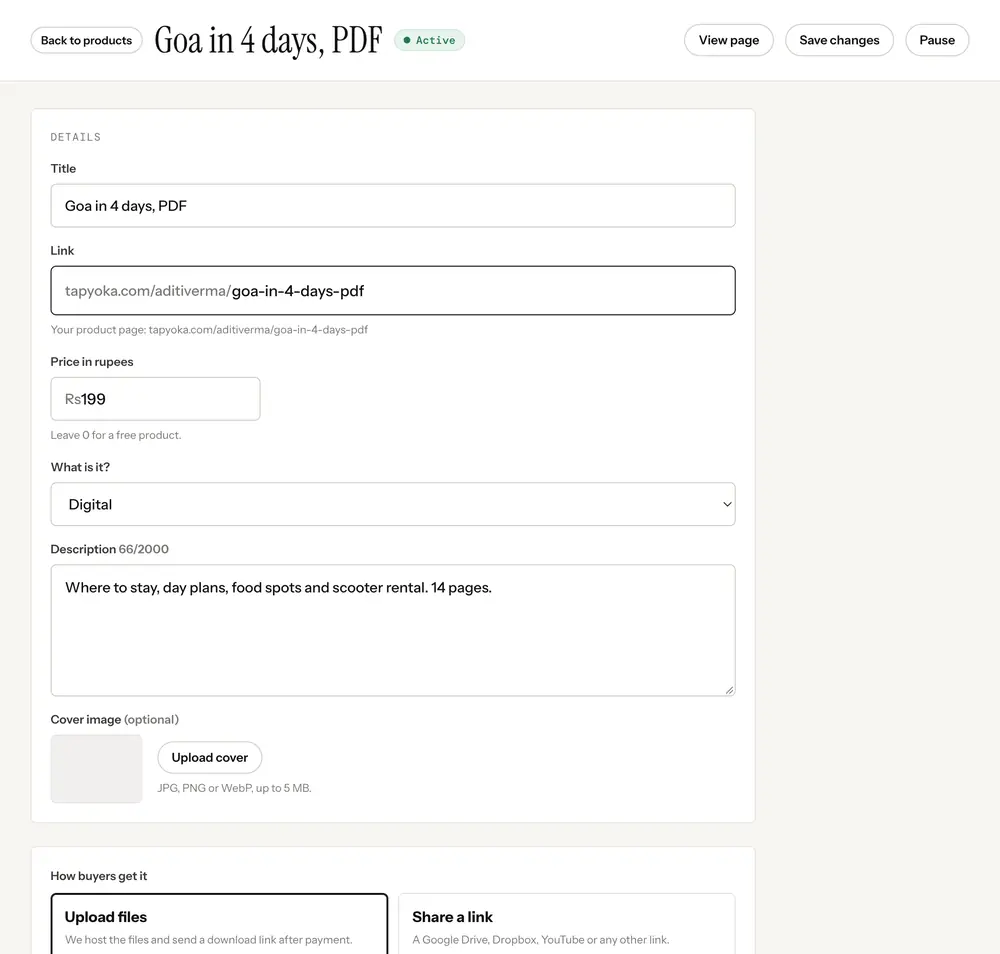
Choose how buyers get it
Under How buyers get it there are two choices.
- Upload files: choose Add files. We host the files and the buyer gets a download link after paying.
- Share a link: paste the address under Link buyers open, for example a private Google Drive folder or an unlisted video, and choose Check link. The link must open for anyone who has it.
Add a Note for buyers (optional) if they need instructions, such as which file to open first.
| Free | Pro | |
|---|---|---|
| Size of one file | 25 MB | 1 GB |
| Total storage | 500 MB | 25 GB |
| Files per product | 3 | 20 |
| File types | Documents, images, audio | Also video, archives and design files |
| Downloads per file, per buyer | 5 | 10 |
| Products | 5 | No limit |
On Free, an uploaded file needs a price of at least ₹10. To give a file away free on Free, use Share a link instead.
Activate it
New products start as a Draft. Choose Save draft to keep working on it, or Save and activate when it is ready. A product needs at least one file or a link before it can be active. Pause takes it off sale without deleting it.
Every active product has its own page at staging.tapyoka.com/yourname/link, with a buy button. You can share that link on its own.
Put it on your page
- Open Page and choose Add product under Blocks.
- Pick the product from the list. Only active products show here.
- Save the block and press Publish changes.
After a sale
The buyer gets an email with a link to their order page, where the files are listed. Each download link lasts 24 hours. When it runs out, the buyer opens the order page again for a fresh one. Buyers can see everything they bought at staging.tapyoka.com/me.
On Pro, you can turn on Watermark PDFs so every page of a PDF carries the buyer email and order ID. PDFs over 50 MB and PDFs with a password are sent without a watermark.
A product that has orders cannot be deleted, because buyers keep their access. Pause it instead.