How a direct payment works
- A buyer places an order on your page. Every order gets an order code, ten letters and numbers such as WYZDJFXUGS. We email you with the amount, the order code and who it is from.
- The buyer pays your UPI ID by scanning the QR code or with Open UPI app. The UPI note carries the order code.
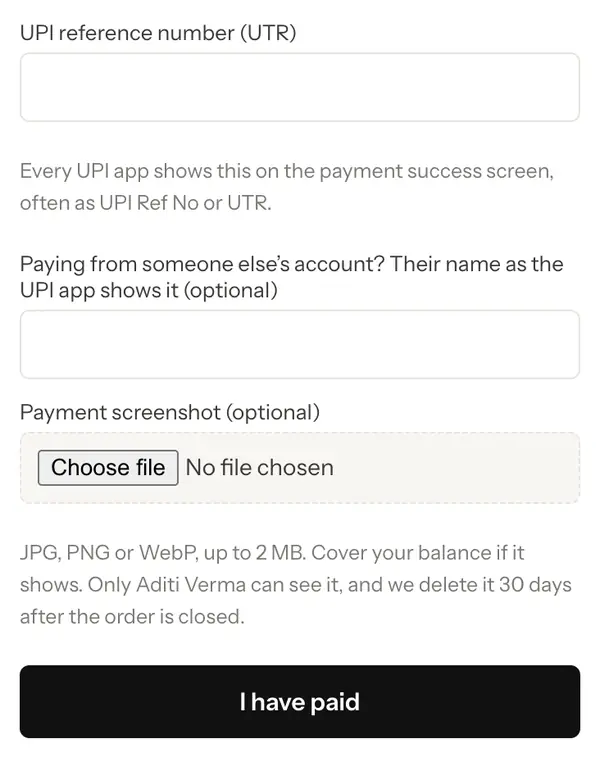
- The buyer enters the UTR from their UPI app and chooses I have paid. You get an email that says the buyer says they paid, with the UTR.
- You check that the money is in your account and choose Mark as paid. The buyer gets their receipt and their download or booking by email.
What the UTR is
Every UPI payment gets a 12 digit reference number. Banks call it the UTR. UPI apps show it in the payment details, under names such as UPI Ref No, UTR or UPI transaction ID. The same number appears in your app and in the buyer app, which is why it is the safest way to match a payment.
To find it in your own app, open the payment in your UPI app history or bank statement and look at its details. You can also search your bank statement for the amount and the date.
Find the payment in Orders
Open Orders. Orders where the buyer has said they paid show a Buyer says paid box with the UTR, the time, and the name on the paying account if it was someone else, such as a parent.
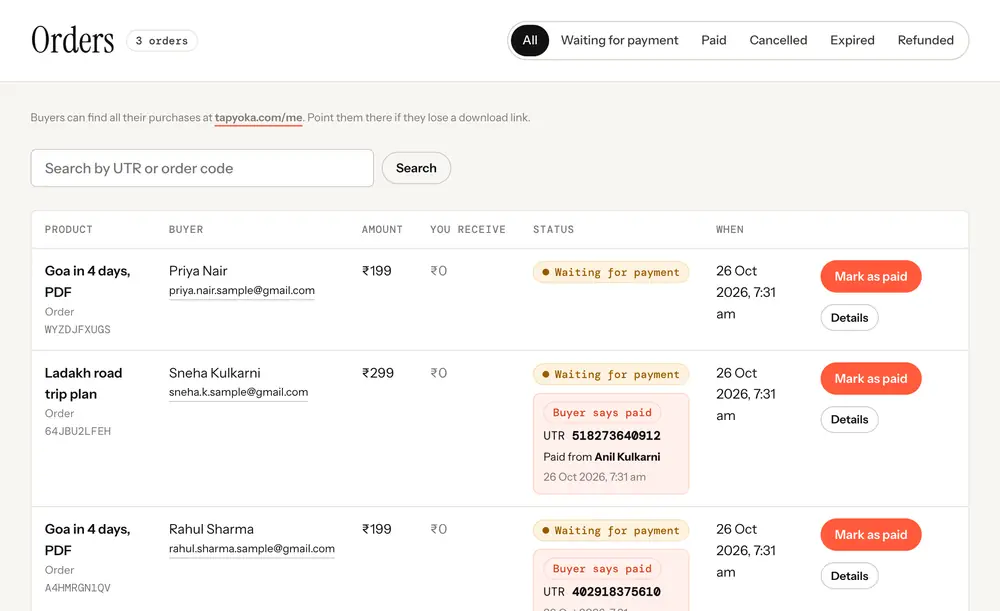
To find one order, type the full 12 digit UTR or the order code into Search by UTR or order code and choose Search. A part of the order code works too, as long as it has at least 4 characters.
Mark it as paid
- Open your UPI app or bank and find a payment with the same UTR and the same amount.
- In Orders, choose Mark as paid on that order.
- The app asks if the money reached you, with the amount and UTR. Confirm only if you have seen it.
The buyer then gets their receipt and access at once, and you get a "New sale" email. Check the money before you press it.
A screenshot can be edited, so never mark an order as paid from a screenshot alone. If the same UTR was given for two orders, the app warns you: one payment pays for one order only.
If the money is not there
- Check the amount and the date again, and the name on the paying account if the buyer gave one.
- If there is still nothing, choose Details and then Cancel order. The buyer can order again.
- Orders that are not marked as paid are cancelled on their own after 7 days. For bookings, an unpaid slot is released after 12 hours, or 1 hour before the slot starts, whichever comes first.
- If a buyer reports that they paid and you have not confirmed, answer the report in Orders within 48 hours. See Refunds.
Screenshots buyers send are kept private to you and deleted 30 days after the order is closed.